 快说
快说Speak, and it is textOffline voice input · Meeting transcripts · Windows / macOS
Hold, talk, let go — your speech becomes text right where you were already typing: chat apps, docs, VS Code. Whole meetings can be recorded as transcripts with the speakers separated for you. Recognition happens entirely on this machine: no network, no upload.
Let us lock this release for next Wednesday.
Got it — I will have the installer and the release notes ready today.
Good. I will email you the transcript once we wrap up.
Why 快说
A genuinely quiet, offline desktop voice input method that never steals focus — leave it running all day and just talk whenever you want speech turned into text.
Hold and talk; the text lands at your cursor
Hold Ctrl+Shift+Space and speak, let go and it is written. The result goes through a real paste, straight into the window you were typing in — chat apps, VS Code, the browser address bar, anywhere.
Meeting transcripts with speakers separated
Meeting mode only records the transcript; not a single character is typed into your document. Speakers are separated automatically, and a second system-audio track is captured so what the other side says in Zoom, Teams or Meet lands in the transcript too. Export as MD / JSON.
Fully offline, on-device recognition
The speech recognition model runs on this machine; not one byte of audio or text leaves it. What is said in your meetings stays yours.
Voice-print gating — only your voice
Loudness and spectrum cannot tell people apart; voice-print vectors can. Enrol with three three-second clips, and from then on only your voice drives dictation — the TV, a video, the colleague next to you all stay out.
A floating bar that never steals focus
A slim bar sits just above the taskbar and never takes focus — while you talk, your original window stays in front, and the text falls back to the cursor when recognition finishes.
Live webhook push
Feed your own system while the meeting is still running: every recognised sentence is POSTed to your endpoint within seconds, tagged with its project ID. No waiting for the meeting to end — and the full transcript is pushed once more when it does.
This is what you get
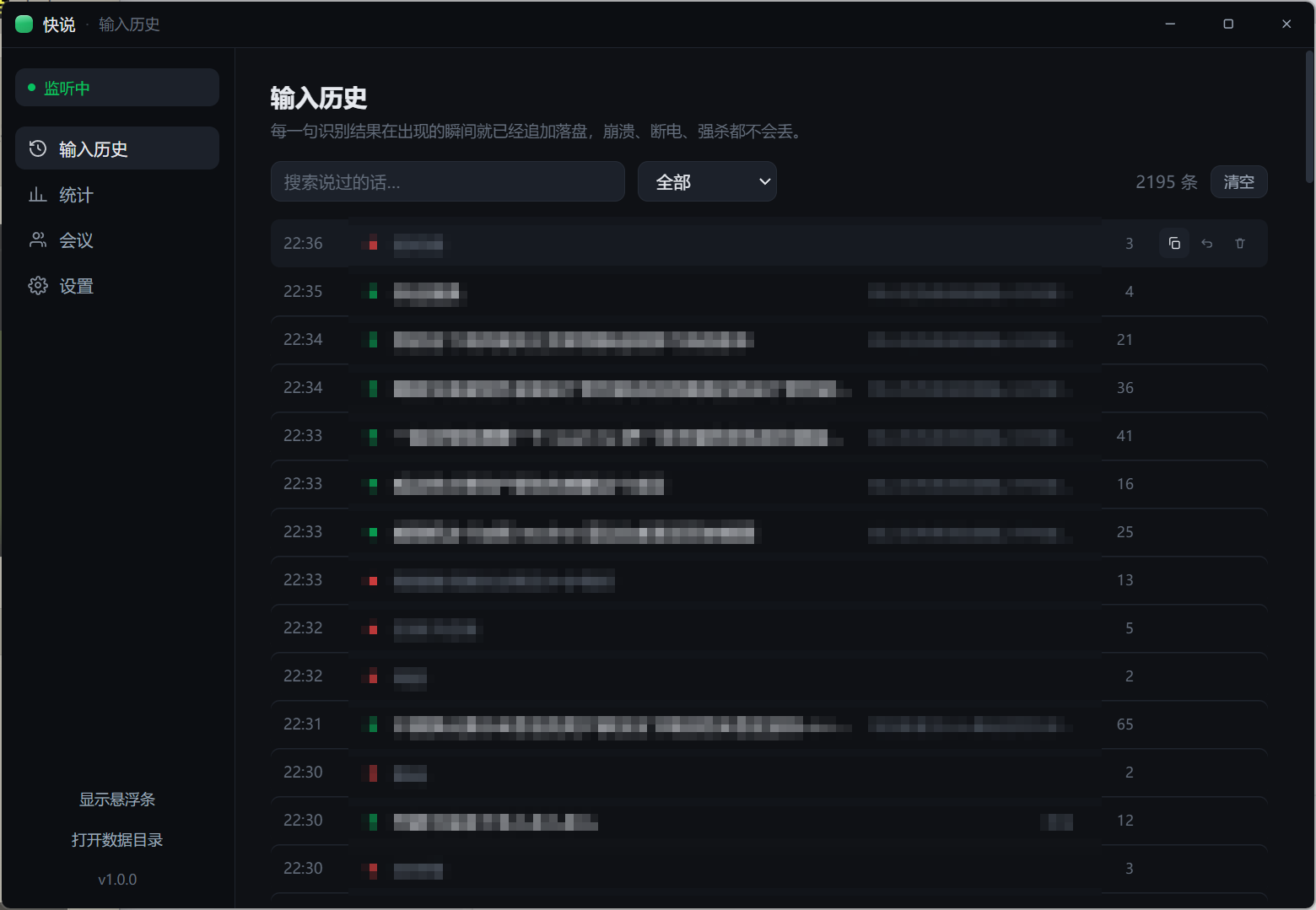
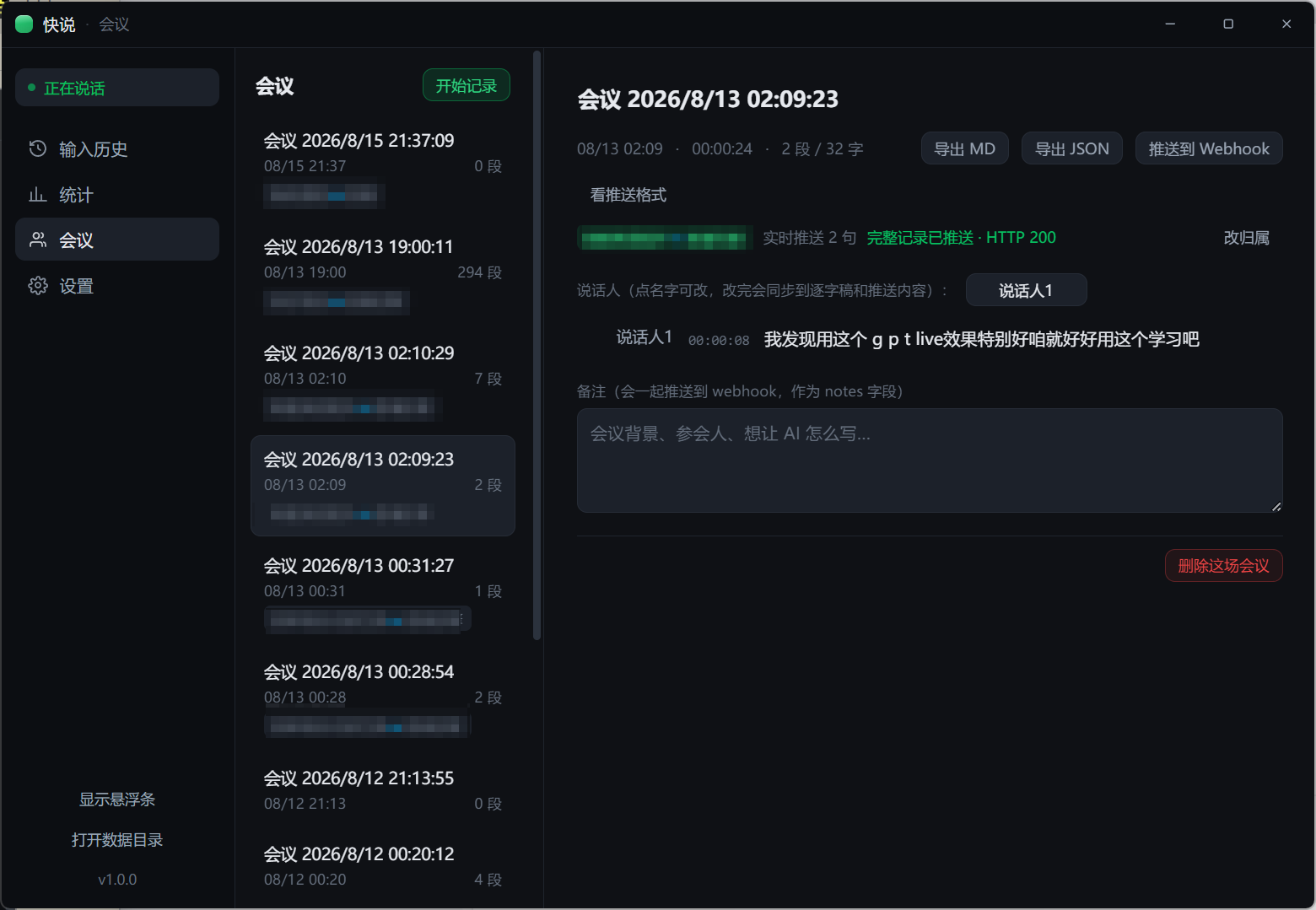
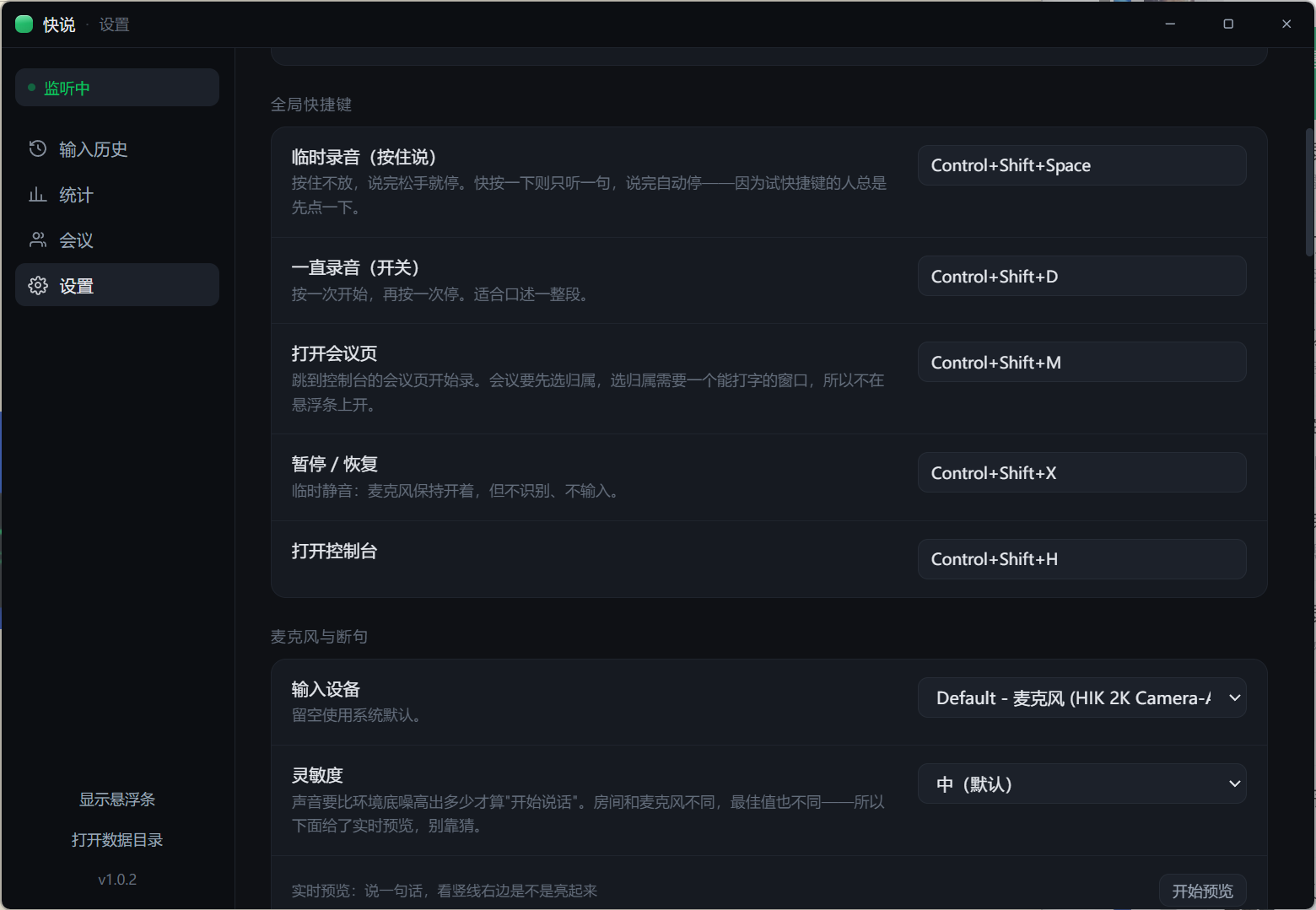
Three real screenshots: dictation history, meeting transcript, settings. The dark interface in them is the product itself, not a broken theme.
From speech to text, in five steps
No start button, no copy and paste. All of it happens between pressing the hotkey and letting go.
-
Hold
Hold Ctrl+Shift+Space. A quick tap instead listens for a single sentence and stops on its own.
-
Talk
The floating bar turns green and moves with your voice; the window you were typing in stays in front the whole time.
-
On-device recognition
SenseVoice turns speech into text on this computer. No server is involved, so it keeps working with the network off.
-
Let go, text lands
One real Ctrl+V and the text is at your cursor. Editors that maintain their own document model, like Draft.js and Lexical, stay intact.
-
Clipboard restored
Whatever you had copied goes back exactly as it was — a voice input method has no business eating your clipboard.
When you will reach for it
Typing is tiring, meetings outrun your notes, some content must not go to the cloud — in those moments, talking beats typing.
Chat and email
A single paragraph in a chat app takes forever to type. Hold, say it, let go — the text is in the input box, with no detour through some other tool and a copy-paste.
Docs and code comments
Your train of thought is continuous; your typing speed breaks it. Dictate the first draft in Word, Notion or VS Code and edit afterwards — voice input only has to turn talk into text.
Remote meeting transcripts
Zoom, Teams, Meet — the microphone captures you, system audio capture fills in the other side, speakers are separated automatically, and you have a searchable transcript the moment the call ends.
Content that must not leave
Customer lists, salaries, medical records, unannounced plans — using an online transcription service hands them to somebody else’s servers. On-device recognition never takes that step.
Air-gapped, or simply offline
Intranet machines, planes, meeting rooms with no signal: cloud speech-to-text is useless in all of them. Kuaishuo’s models are local, so it works with the network off.
Wired into your own system
Easier than standing up a local Whisper yourself: install and it runs, add a webhook URL and transcripts are pushed to your endpoint sentence by sentence. How the summary gets written is up to your own system.
Fully offline, not one word uploaded
The moment speech has to pass through a server, so do the passwords, the salaries and the medical records inside it. Kuaishuo recognises speech only on your computer.
You might be wondering
Does it need an internet connection?
Recognition does not. The speech model (228MB) and the voice-print model (27MB) both ship inside the installer, so it works the moment installation finishes with no first-launch download. At runtime it sends neither audio nor text to any server; the only outbound traffic is the webhook you configured yourself in settings, which pushes meeting transcripts to your own endpoint sentence by sentence.
Which operating systems are supported?
Windows and macOS installers are available today, and both buttons in the download section work. Capturing system audio on Windows additionally requires Windows 10 or newer.
How accurate is it?
The bundled SenseVoice model runs locally and is accurate enough for everyday dictation and meeting conversation; a quiet room and a close microphone give the best results. Every sentence is written to disk the instant it is recognised, so length is never a risk.
How does it tell speakers apart in a meeting?
It uses the vector captured when you enrolled your voice print to tag each turn as Me, Speaker 1, Speaker 2 and so on. Tags can be renamed, and renaming rewrites the whole transcript in place. Remote meetings additionally record a separate system-audio track that is segmented and diarised on its own, and that track is never labelled as you.
Where is my data stored?
All of it stays on this computer: transcripts and dictation history are written to local files the instant they are recognised. There is no account and no cloud sync. If you no longer want any of it, deleting the files (or uninstalling) really does remove it.
Is it free?
Yes, and no account is required. Recognition runs entirely on your own computer, so there is no cloud bill behind it and therefore no limit on minutes, characters or number of uses. Installers are downloaded directly from GitHub Releases and the source is open under the MIT licence.
Can I dictate directly inside chat apps, editors and VS Code?
Yes, and without installing any plugin. Kuaishuo does not take over the system input method; once recognition finishes it performs a real Ctrl+V paste, so chat apps, VS Code, Word, the browser address bar — anything you can paste into will work. Whatever you had copied before is put back on the clipboard afterwards.
How is this different from online transcription services?
They are a different category: cloud services upload the recording for batch transcription, which really is stronger on accuracy and post-processing for long audio, at the cost of the content leaving your computer and being billed by duration; the dictation built into Windows needs the network too and does not separate speakers. Kuaishuo is a local real-time tool whose model runs on your own machine, landing text at the cursor or in the transcript the moment you stop talking, and it keeps working offline, which suits content that should not travel. It is also far less work than standing up Whisper locally yourself. The boundary is worth stating too: Kuaishuo only handles the live microphone and system audio capture; it does not import and batch-transcribe audio files, so use a cloud service for recordings you already have.
Install and it runs
Free, no account needed. Both the speech model and the voice-print model ship inside the Windows / macOS installer, so there is no download to wait through on first launch. Install, hold, talk.
Linux ships as both an AppImage and a .deb — the button above downloads the AppImage, and the .deb link is in the release notes. The AppImage needs libfuse2, which Ubuntu has not installed by default since 22.04; on Ubuntu 24.04 prefer the .deb. Either way the speech model is fetched on first launch.
Something not working? Say so in the group
Bug reports, feature wishes, early builds — all of it happens in this WeChat group.
Scan with WeChat to join the 快说 product community group